
GIS integration
rdf_fdw can be used as a bridge between GIS (Geographic Information Systems) and RDF triplestores.
Import data into QGIS
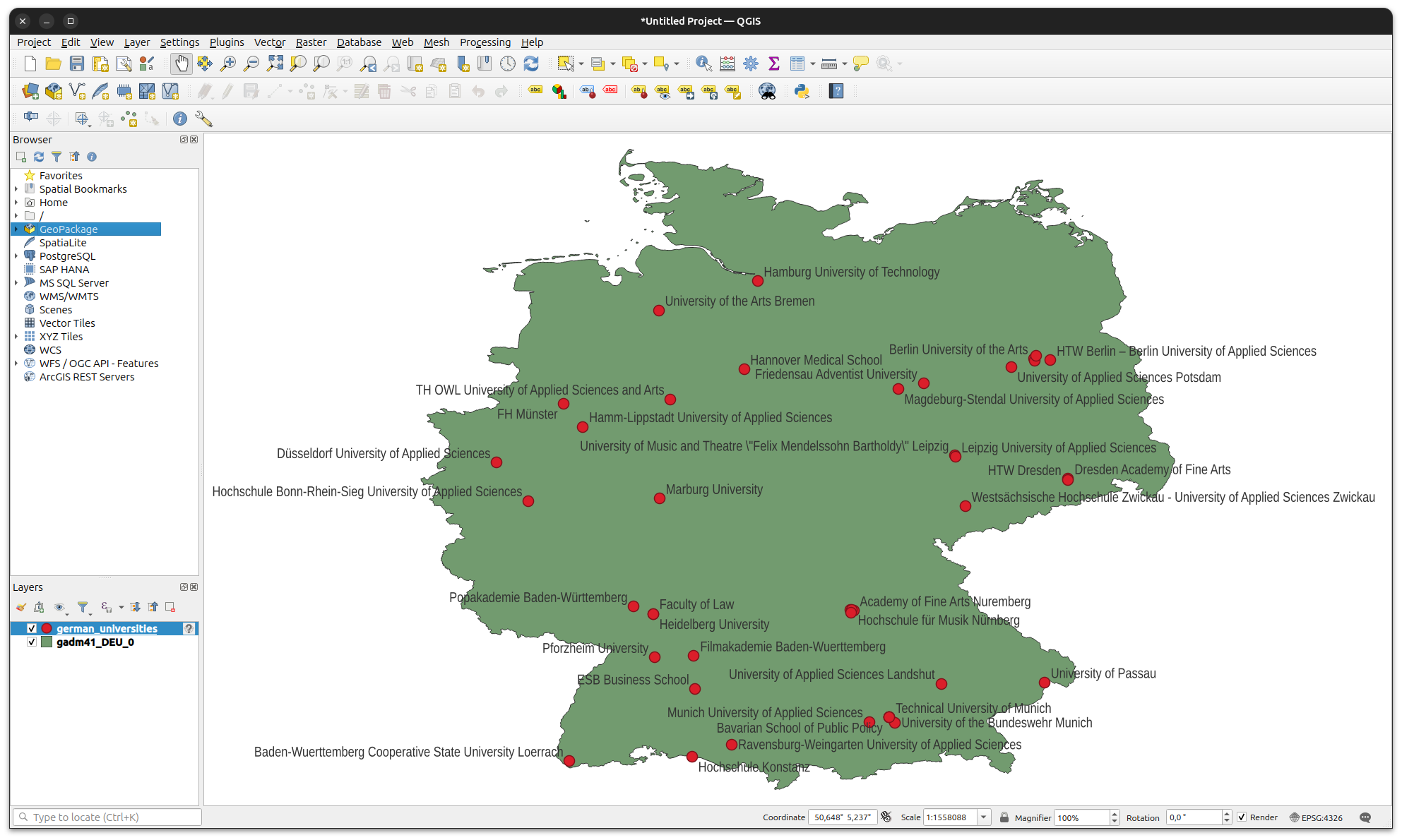
The rdf_fdw can also be used as a bridge between GIS (Geographic Information Systems) and RDF Triplestores. This example demonstrates how to retrieve geographic coordinates of all German public universities from DBpedia, create WKT (Well Known Text) literals, and import the data into QGIS to visualize it on a map.
[!NOTE]
This example requires the extension PostGIS.
CREATE SERVER dbpedia
FOREIGN DATA WRAPPER rdf_fdw
OPTIONS (endpoint 'https://dbpedia.org/sparql');

CREATE FOREIGN TABLE german_public_universities (
  id   rdfnode OPTIONS (variable '?uri'),
  name rdfnode OPTIONS (variable '?name'),
  lon  rdfnode OPTIONS (variable '?lon'),
  lat  rdfnode OPTIONS (variable '?lat')
) SERVER dbpedia OPTIONS (
  sparql '
    PREFIX geo: <http://www.w3.org/2003/01/geo/wgs84_pos#>
    PREFIX dbp: <http://dbpedia.org/property/>
    PREFIX dbo: <http://dbpedia.org/ontology/>
    PREFIX dbr:  <http://dbpedia.org/resource/>
    SELECT ?uri ?name ?lon ?lat
    WHERE {
      ?uri dbo:type dbr:Public_university ;
        dbp:name ?name;
        geo:lat ?lat;
        geo:long ?lon;
        dbp:country dbr:Germany
      }
  ');
Now that we have our FOREIGN TABLE in place, we just need to create a New PostGIS Connection in QGIS and go to Database > DB Manager …, select the table we just created and query the data using SQL:
SELECT
  sparql.lex(name),
  sparql.lex(
    sparql.concat('POINT(', lon, ' ', lat, ')')
    )::geometry AS geom
FROM german_public_universities;
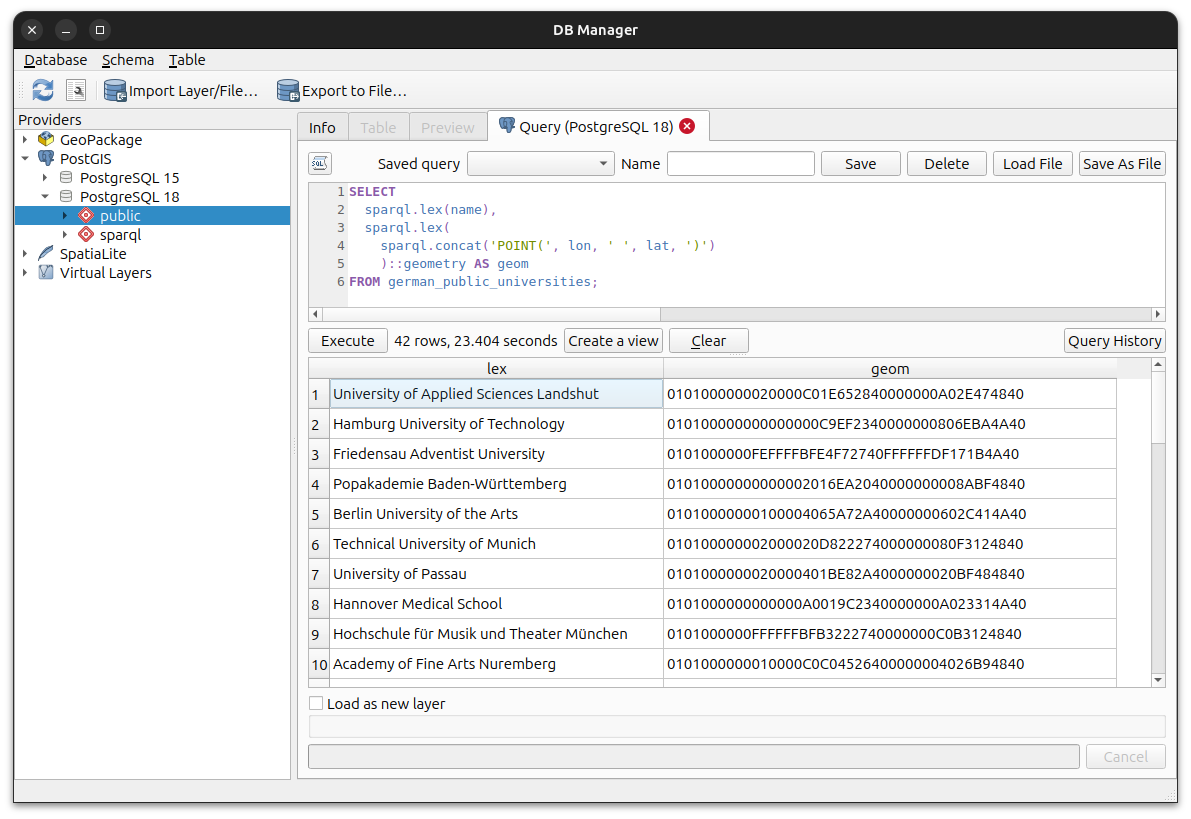
Finally give the layer a name, select the geometry column and press Load.
Publish FOREIGN TABLE as WFS layer in GeoServer
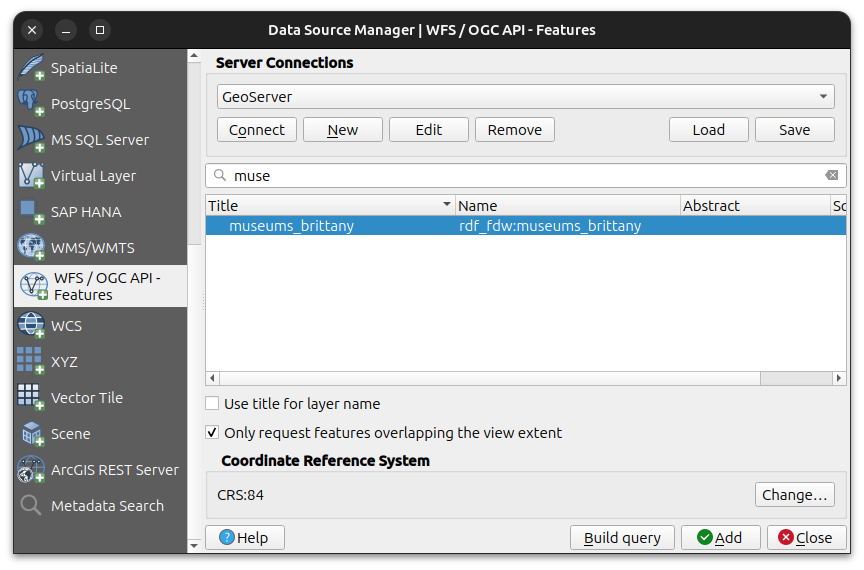
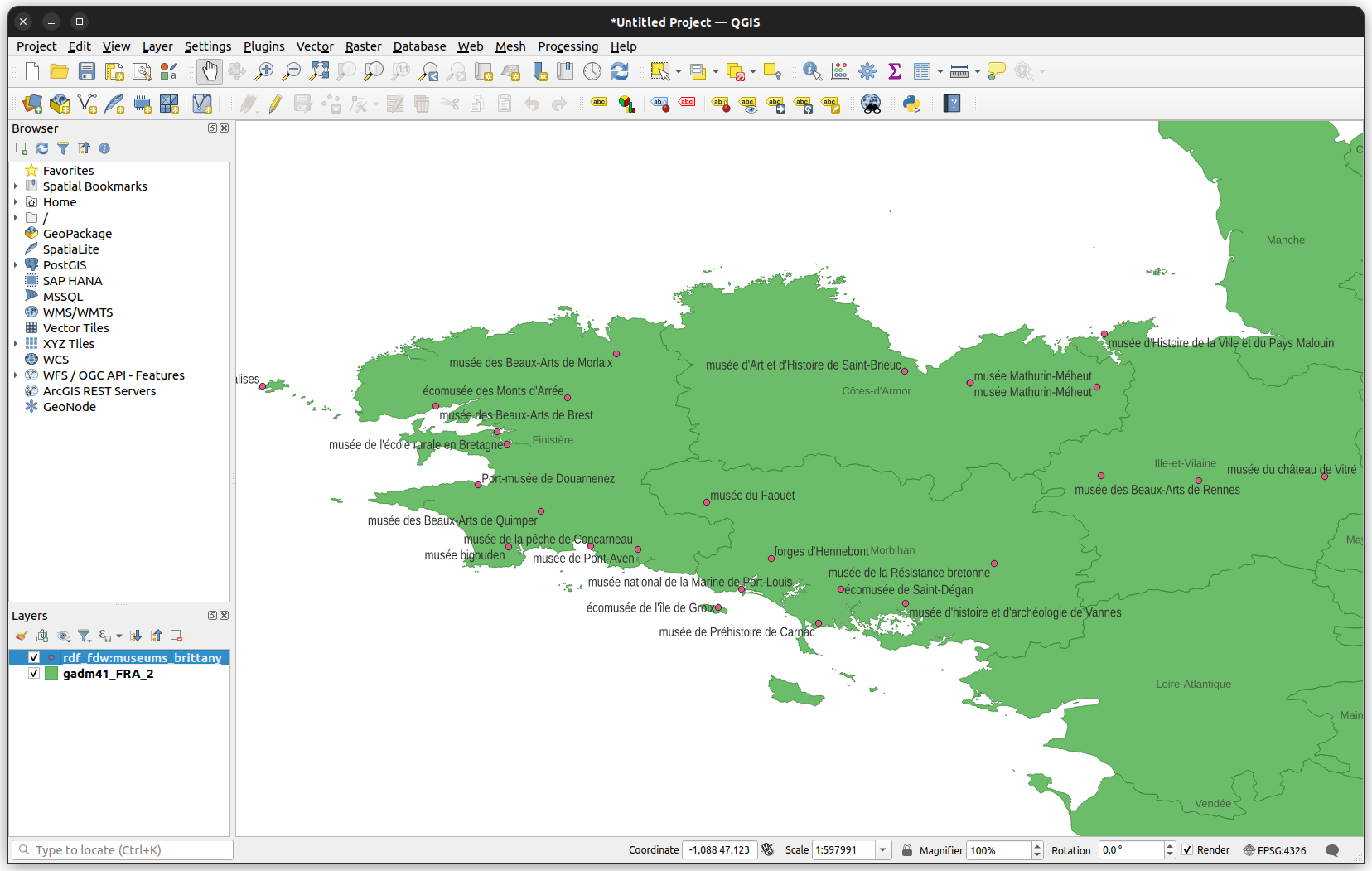
Just like with an ordinary TABLE in PostgreSQL, it is possible to create and publish FOREIGN TABLES as WFS layers in GeoServer.
First create the FOREIGN TABLE:
CREATE SERVER wikidata
FOREIGN DATA WRAPPER rdf_fdw
OPTIONS (endpoint 'https://query.wikidata.org/sparql');

CREATE FOREIGN TABLE museums_brittany (
  id    rdfnode   OPTIONS (variable '?villeId'),
  label rdfnode   OPTIONS (variable '?museumLabel'),
  ville rdfnode   OPTIONS (variable '?villeIdLabel'),
  geom  rdfnode   OPTIONS (variable '?coord')
) SERVER wikidata OPTIONS (
  sparql '
    SELECT DISTINCT ?museumLabel ?villeId ?villeIdLabel ?coord
    WHERE
    {
      ?museum wdt:P539 ?museofile. # french museofile Id
      ?museum wdt:P131* wd:Q12130. # in Brittany
      ?museum wdt:P131 ?villeId.   # city of the museum
      ?museum wdt:P625 ?coord .    # wkt literal
      SERVICE wikibase:label { bd:serviceParam wikibase:language "fr". } # french label
    }
  ');
Then set up the Workspace and Store, go to Layers -> Add a new layer, select the proper workspace and go to Configure new SQL view… to create a layer create a layer with a native SQL statement:
SELECT
 sparql.lex(label) AS label,
 sparql.lex(ville) AS ville,
 sparql.lex(geom)::text::geometry AS geom
FROM museums_brittany;
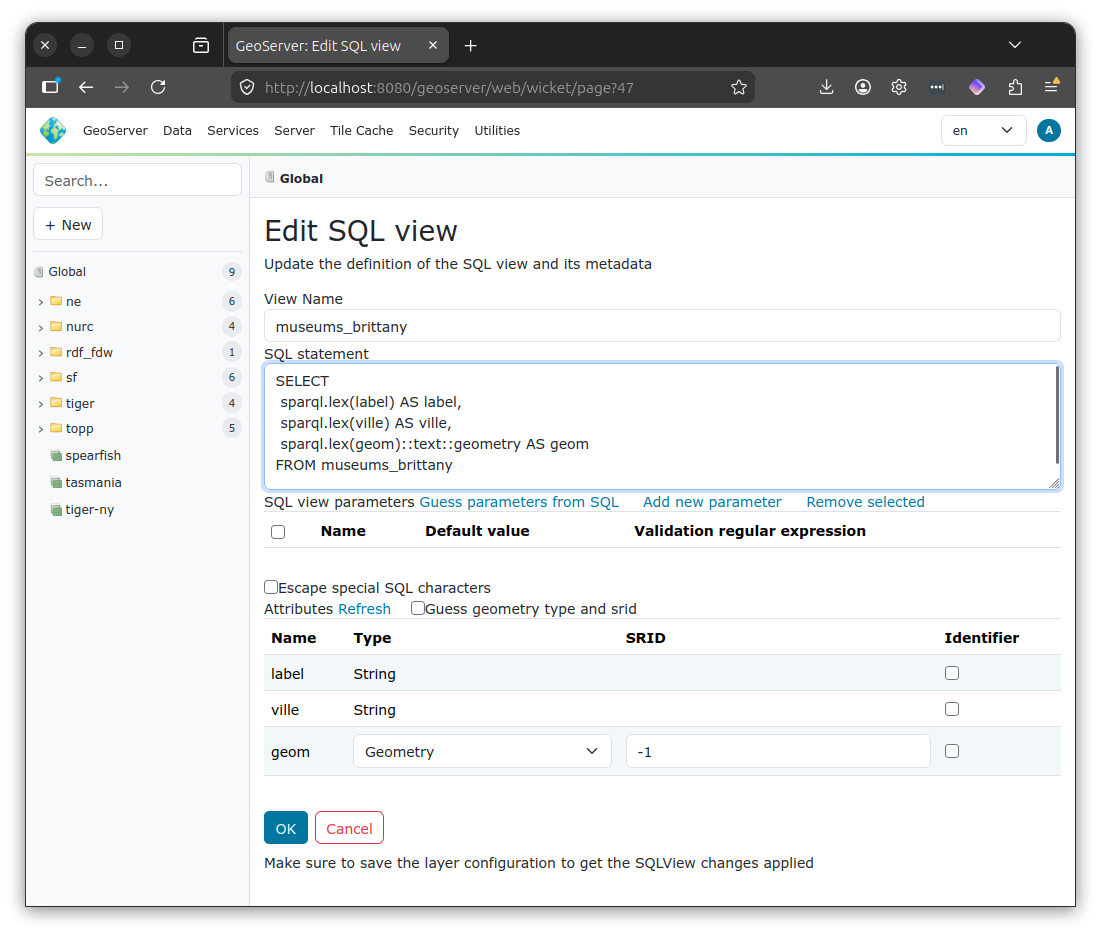
After that set the geometry column and identifier, and hit Save. Finally, fill in the remaining layer attributes, such as Style, Bounding Boxes and Spatial Reference System, and click Save - see this instructions for more details. After that you’ll be able to reach your layer from a standard OGC WFS client, e.g. using QGIS.